
Recently, the WatchTower developers announced that the project would be discontinued.Many of us had quietly relied on WatchTower to keep Docker container images up to date, so the immediate reaction was predictable. People started searching for an alternative that could keep their containers updated without manual intervention.
Stepping back for a moment, the whole situation reveals something slightly strange about Docker itself. Image updates are a fundamental operational need because containers drift out of date quickly, especially when they run public images. Yet Docker never built a native update mechanism into the platform. Instead, the ecosystem grew around third-party tools such as WatchTower to fill that gap.
Podman approaches the problem differently as automatic updates and rollbacks are built directly into the platform. There is no monitoring daemon and no external utility required. In this article I will walk through how Podman handles automatic updates, how it integrates with systemd, and how it performs automatic rollbacks when an update goes wrong.
Integration with systemd
The real strength of Podman appears when it runs alongside systemd (okay okay don't run away). Once I started managing containers as systemd services, a large portion of the operational plumbing became simpler. Automatic updates and rollbacks rely heavily on this integration.
The engine
Podman does not run a background daemon constantly monitoring containers. Instead, updates are triggered through the podman auto-update command. This command scans for containers that carry a specific label and updates them if a newer image exists.
For a container to participate in automatic updates it must have the label io.containers.autoupdate.
You can verify whether a container has this label by inspecting it:
$ podman inspect wp-redis --format {{.Config.Labels}}
map[PODMAN_SYSTEMD_UNIT:wp-redis.service io.containers.autoupdate:registry]
This label accepts two possible values.
registry checks whether a newer version exists in the container registry by comparing image digests.
local checks whether the locally stored image has changed. This is useful if you build container images locally rather than pulling them from a registry.
How do we label the container?
The label can be applied in different ways depending on how the container is created.
For example, if the container is started directly from the command line:
# Example when creating a container
podman run -d --name my-service \
  --label "io.containers.autoupdate=registry" \
  docker.io/library/nginx:latest
If you are using a Quadlet container definition, you only need to add the option inside the container section:
AutoUpdate=registryAutomation with systemd
At this point the container is eligible for updates, but nothing actually runs the update process yet.
Podman ships with a systemd timer that executes the update command on a schedule. Enabling it is straightforward:
systemctl --user enable --now podman-auto-update.timerThis timer triggers podman-auto-update.service, which runs the podman auto-update command. By default the timer executes every 24 hours.
Choosing when updates happen
When I first set this up, I configured daily updates, just like I had done with WatchTower in Docker. That decision eventually turned into a mess. WordPress stacks in particular caused frequent headaches when updates arrived unexpectedly.
Eventually I switched to weekly updates at a specific time. Podman makes this easy because the schedule is entirely defined through systemd.
To modify the schedule:
systemctl --user edit podman-auto-update.timerUsing systemctl edit is important because it creates a drop-in override file. This prevents your changes from being overwritten when the Podman package is updated.
Running the command opens a text editor where you add a [Timer] section. For example, if you want updates to run every Monday at 3:30 AM:
[Timer]
# First we clear the previous configuration
OnCalendar=
# Define the new schedule
OnCalendar=Mon *-*-* 03:30:00
# Add a random delay to avoid network spikes (optional)
RandomizedDelaySec=30m
The OnCalendar syntax follows a structured format:
Field | Format | Examples
Day of week | Name or abbreviation | Mon, Fri
Date | YYYY-MM-DD | 2025–12–31, - 01
Time | HH:MM:SS | 03:00:00, :30:00
Some practical examples:
Every morning at 4:15
OnCalendar=*-*-* 04:15:00
Weekends at midnight
OnCalendar=Sat,Sun *-*-* 00:00:00
Every hour on the hour
OnCalendar=hourly
Every 15 minutes
OnCalendar=*:0,15,30,45
First Monday of each month
OnCalendar=Mon *-*-01..07 02:00:00
You can also combine operators to refine the schedule.
Ranges
Mon..Fri
Repetitions
*:0/15
Whenever I write one of these expressions I still verify it using systemd-analyze. It saves time and prevents confusion.
$ systemd-analyze calendar "Mon..Fri *-*-* 03:00:00"
Normalized form: Mon..Fri *-*-* 03:00:00
    Next elapse: Wed 2026-03-11 03:00:00 CET
       (in UTC): Wed 2026-03-11 02:00:00 UTC
       From now: 1 day 19h left
If your infrastructure spans multiple time zones, remember that systemd normally uses the host's local time. If you want updates to run at a fixed UTC time regardless of server location, you can specify it directly:
OnCalendar=*-*-* 02:00:00 UTCAfter saving the changes, reload the systemd configuration:
systemctl --user daemon-reloadThen confirm that the timer is active:
systemctl --user status podman-auto-update.timerAutomatic rollbacks
Podman includes a rollback mechanism that activates if an update fails. The process is reactive rather than proactive. Podman pulls the new image, restarts the service, and observes whether the container starts correctly. If the startup fails, Podman restores the previous image automatically.
Several conditions must be satisfied for rollback to work properly:
- The container must be managed by systemd as a service.
- The
--rollbackflag must be enabled. This is already the default behavior forpodman auto-update. - Failure detection must work correctly. This is where
sdnotifybecomes important.
When using --sdnotify=container, the container signals systemd when it reaches a READY state. If that signal never arrives within the expected time window, systemd marks the service as failed and Podman rolls back to the previous image.
A basic Quadlet definition might look like this:
[Container]
Image=docker.io/library/nginx:latest
AutoUpdate=registry
[Service]
# Optional: improves failure detection and rollbacks
Environment=PODMAN_SYSTEMD_UNIT=%n
In the simplest case a rollback occurs because the container fails immediately at startup. The process exits with a non-zero code, systemd marks the service as failed, and podman auto-update restores the previous image.
Using sdnotify
A more robust approach is enabling readiness signaling:
[Container]
Image=docker.io/library/nginx:latest
AutoUpdate=registry
# Tells Podman to wait for the container to send the ready signal
Notify=true
[Service]
Environment=PODMAN_SYSTEMD_UNIT=%n
# Maximum time to wait before considering startup failed
TimeoutStartSec=60
Here the container must explicitly report readiness. If it does not do so within the allowed time, the update is treated as a failure.
Health checks
The most reliable strategy is using container health checks.
[Unit]
Description=Nginx service with retries and automatic rollback
# Allows systemd to retry starting the service multiple times
StartLimitIntervalSec=300
StartLimitBurst=5
[Container]
Image=docker.io/library/nginx:latest
AutoUpdate=registry
ContainerName=nginx-web
PublishPort=8080:80
Notify=true
# --- HEALTH CHECK RETRY STRATEGY ---
# Check health every 10 seconds
HealthInterval=10s
# If it fails, retry up to 5 times before marking it unhealthy
# (about 50–60 seconds before triggering rollback)
HealthRetries=5
# Health check command
HealthCmd=curl -f http://localhost/ || exit 1
# Grace period for application startup
HealthStartPeriod=15s
HealthTimeout=5s
[Service]
# Identifier for auto-update
Environment=PODMAN_SYSTEMD_UNIT=%n
# --- SYSTEMD RETRIES ---
# Restart automatically if container fails
Restart=on-failure
# Delay between restart attempts
RestartSec=5s
# Maximum time systemd waits for the health check to become healthy
TimeoutStartSec=120
[Install]
WantedBy=default.target
Several parameters influence how this behaves.
StartLimitIntervalSec=300 defines the time window during which systemd counts startup failures.
StartLimitBurst=5 limits the number of restart attempts during that window.
Restart=on-failure tells systemd to restart the container when it crashes or fails a health check.
RestartSec=5s adds a short pause between restart attempts.
Notify=true tells systemd to wait for a readiness signal from inside the container.
When a health check exists, Podman waits until the first successful health check before sending the readiness signal. Until then the service remains in the activating state.
Environment=PODMAN_SYSTEMD_UNIT=%n allows the Podman process to identify which systemd unit controls the container.
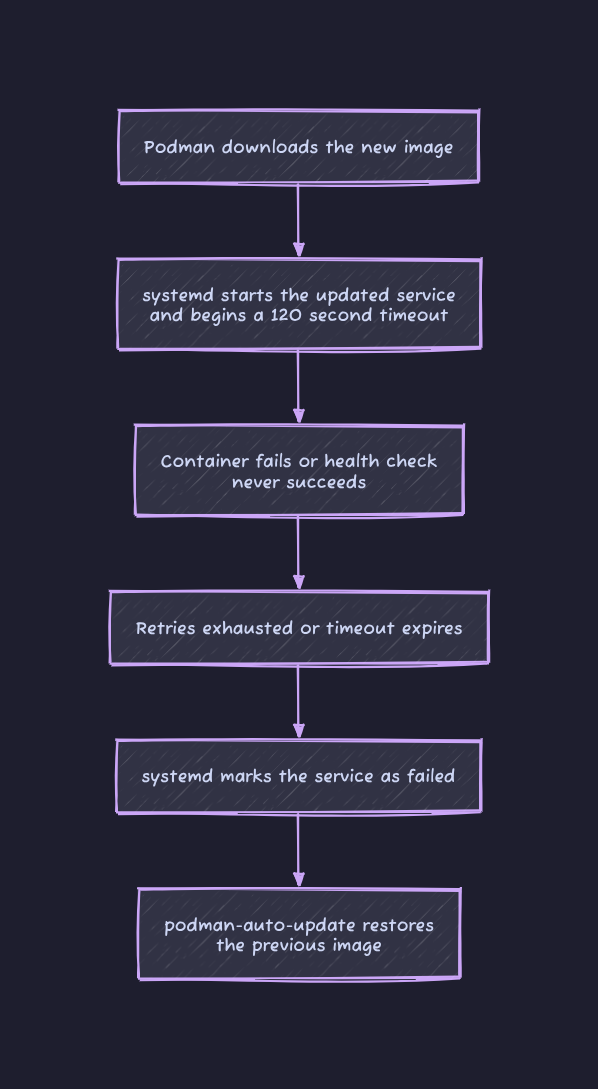
TimeoutStartSec=120 defines the maximum time allowed for the service to move from activating to active. If readiness never arrives within that period, systemd assumes the image is broken and marks the service as failed. At that point Podman triggers a rollback.
What the sequence looks like
Notifications
The final question is how to detect when a rollback occurs because everything runs through systemd, the answer again lives in the system logs. A small script can watch those logs and send a notification.
For example, here is a small Telegram notification script:
#!/usr/bin/env bash
TOKEN="YOUR_TELEGRAM_TOKEN"
CHAT_ID="YOUR_CHAT_ID"
URL="https://api.telegram.org/bot$TOKEN/sendMessage"
HOSTNAME=$(hostname)
LOGS=$(journalctl --user -u podman-auto-update.service -n 50)
if echo "$LOGS" | grep -q "rolling back"; then
    UNIT=$(echo "$LOGS" | grep "rolling back" | sed -n 's/.*unit "\(.*\)".*/\1/p' | head -n 1)
    STATUS="*ROLLBACK ON $HOSTNAME*"
    MESSAGE="The unit \`$UNIT\` failed after updating. Podman restored the previous version to keep the service online."
elif echo "$LOGS" | grep -q "updated"; then
    UNITS=$(echo "$LOGS" | grep "updated" | sed -n 's/.*unit "\(.*\)".*/\1/p' | paste -sd ", " -)
    STATUS=" *UPDATE SUCCESSFUL*"
    MESSAGE="The following units were updated successfully: \`$UNITS\`."
else
    exit 0
fi
TEXT="$STATUS%0A%0A$MESSAGE"
curl -s -X POST "$URL" \
     -d chat_id="$CHAT_ID" \
     -d text="$TEXT" \
     -d parse_mode="Markdown" > /dev/null
Make the script executable, then attach it to the update service:
systemctl --user edit podman-auto-update.serviceAdd the following section:
[Service]
ExecStopPost=/home/lorenzo/scripts/notify-rollback.sh
At that point the system becomes largely self-maintaining. The timer runs quietly at the schedule you defined, if a container update fails, retries, and timeouts Podman automatically restores the last working image. When the process finishes, the script sends a Telegram notification reporting the result.